 BrowserBox
14 Run & deploy
Docker Deployments (bbx docker)
In this chapter
Each BrowserBox release publishes a container image for Linux on AMD64 and ARM64. The image holds the native BrowserBox binary, Chromium and the normal bbx command layer, so a container host needs neither a host Chromium nor a host BrowserBox installation. The same images are published to two registries:
ghcr.io/browserbox/browserbox:20.4.0    # or :latest
docker.io/dosyago/browserbox:20.4.0 # or :latestDocker pulls the variant for the engine’s own platform. bbx docker manages a named deployment of this image on a Docker engine. The image does not depend on it: it also runs directly on your own container infrastructure (Section 14.7).
14.1 Quick start #
A full BrowserBox installation already includes the Docker commands. A host that should only run containers can install the commands alone:
curl -fsSL https://browserbox.io/install.sh -o install.sh
bash install.sh --cli-onlyThe commands go to /usr/local/bin when it is writable (directly or through sudo), otherwise to ~/.local/bin; BBX_CLI_BIN_DIR chooses another directory. Then create and start a deployment named work:
bbx docker run workDeployment names contain 1–59 lowercase letters, digits or hyphens and begin with a letter or digit. Together with the bbx- prefix, this keeps the generated Compose project name within one portable 63-character label.
The first run configures the deployment, starts it, waits until it is ready and prints its login link. It reuses the installed licence, terms agreement and hostname, as bbx setup does. On localhost it uses local TLS; any other hostname uses the installed certificate pair in ~/sslcerts. The certificate authority must be trusted on the machine running the customer’s browser, not inside the container.
14.2 Docker engines and platforms #
bbx docker reuses a working Docker engine and installs one only when none is available:
Linux: installs Docker’s official engine and the Compose plugin. AMD64 and ARM64 hosts run the image natively.
macOS: uses a running Docker engine such as Docker Desktop; on Apple Silicon it runs the native ARM64 image. Without one, it installs the Docker CLI, Compose and a dedicated Colima virtual machine through Homebrew that matches the Mac: native ARM64 on Apple Silicon (profile
browserbox-arm64), AMD64 on Intel (profilebrowserbox). A deployment created on an existing AMD64 VM keeps using it. Other Docker contexts are left unchanged.Windows: run the Unix
bbxin WSL with Docker integration (Docker Desktop, or Docker inside WSL when systemd is available).
Each deployment remembers its engine. Set BBX_DOCKER_CONTEXT to a named Docker context before creating a deployment to choose the engine; later commands address that same engine and report it if it is unavailable, rather than recreating the deployment elsewhere. A transient DOCKER_HOST is refused for this reason.
Setup always checks the image with the registry, reuses layers that are already present, verifies the image and its platform, and saves its immutable digest. Later starts keep using that exact image until you update it explicitly.
14.3 Commands #
| Command | Effect |
|---|---|
bbx docker setup NAME [options] |
Configure without starting. Stop an existing deployment before changing it. |
bbx docker run NAME [options] |
Set up a new deployment and start it. An existing deployment accepts only NAME and starts its saved configuration. |
bbx docker start NAME |
Start the saved configuration, wait for readiness and print the login link. |
bbx docker stop NAME |
Stop gracefully, keeping all data. |
bbx docker restart NAME |
Stop, then start. |
bbx docker status NAME [--json] |
Show container and service health. |
bbx docker logs NAME [--follow] |
Show startup and runtime logs. |
bbx docker link NAME |
Check readiness, then print the login link. |
bbx docker update NAME --version X.Y.Z |
Pull and verify that release’s image, then recreate the container with its data. --image REFERENCE names another image instead. |
bbx docker remove NAME |
Remove the container and network, keeping data. |
bbx docker remove NAME --purge |
Also delete the deployment’s data and configuration. |
bbx docker config NAME |
Print the saved Compose project (it refers to secret files; it does not contain their values). |
bbx docker exec NAME bbx policy show |
Run a normal bbx command inside the deployment, as its service user. |
bbx docker help prints the same summary. Login links are reusable credentials: print them deliberately and treat them like passwords. Container logs redact product keys and login tokens.
14.4 Setup options #
| Option | Meaning |
|---|---|
--hostname HOST |
Browser-facing hostname. Default: the installed hostname. |
--port PORT |
Main service port, as in bbx setup. Default: 8888. |
--bind IPV4 |
Host address the ports are published on. Default: 127.0.0.1. |
--tls MODE |
local, provided or external (below). |
--cert-dir DIR |
Directory holding fullchain.pem and privkey.pem, for --tls provided. |
--license-file FILE |
Product key file, copied privately into the deployment. |
--version VERSION |
Exact release image to use, saved by digest. |
--image REFERENCE |
Another image implementing the BrowserBox container interface. |
--accept-terms |
Accept https://dosaygo.com/terms.txt without a prompt. |
--license-file, --accept-terms, --tls and --cert-dir are for headless or CLI-only hosts that have no BrowserBox installation to reuse. For example, a server with its own certificate:
bbx docker run work --hostname browser.example.com --port 8888 \
  --bind 0.0.0.0 --tls provided --cert-dir /etc/browserbox/certs \
--license-file /etc/browserbox/license.key --accept-termsSetup checks the certificate’s hostname, expiry and matching key. Root-owned source files are supported. The licence and certificate pair are copied into the container for its service user; no certificate-authority private key is copied.
14.5 Ports and TLS modes #
A deployment publishes the same four ports as a host installation, with equal host and container port numbers:
| Service | Offset | Default port |
|---|---|---|
| Audio | −2 | 8886 |
| Documents | −1 | 8887 |
| BrowserBox | 0 | 8888 |
| DevTools (authenticated) | +1 | 8889 |
--bind controls where they are published (loopback by default); --hostname controls the identity the customer’s browser uses. Chrome’s private debugging port is never published.
local: BrowserBox-managed local certificates, forlocalhost.provided: your certificate pair from--cert-dir.external: the services speak plain HTTP on host loopback, at the same four ports. Your reverse proxy must terminate HTTPS for all four public ports and forward the Host header and WebSocket upgrades. Rewriting only the main login URL is not enough.
WebRTC remains the default transport, with its usual WebSocket fallback. Published TCP ports do not guarantee direct UDP connectivity through every Docker or customer network; the fallback covers that case.
14.6 Data, licence and updates #
Each deployment is an ordinary Compose project, saved as compose.json in a directory named after the deployment under ~/.config/dosaygo/bbx-docker/ (BBX_DOCKER_HOME changes that parent directory). It has one container and one named volume holding that deployment’s browser profile, policy, configuration and downloads. The host’s own BrowserBox configuration is never mounted.
stopandremovekeep the data; onlyremove --purgedeletes it.Never attach one deployment’s volume to two running containers, and do not copy volumes to create more seats. Every running deployment uses a licensed seat.
The product key is stored as a private file (mode 0600) beside the project and mounted as a file; it does not appear in the container’s configuration.
updatekeeps the previous project asprevious-compose.jsonfor inspection. It does not roll back automatically if the new image fails to become ready; check data compatibility before returning to an older image.
Because the project is plain Compose, Docker’s own tools also work on it, using the deployment’s saved context:
docker compose -p bbx-work -f ~/.config/dosaygo/bbx-docker/work/compose.json up -d --wait
docker compose -p bbx-work -f ~/.config/dosaygo/bbx-docker/work/compose.json stopThe image never updates its own binary in place; change versions with bbx docker update.
14.7 Running the image on your own infrastructure #
The image can be deployed directly with your own orchestration. It reads its configuration from the environment:
| Variable | Meaning |
|---|---|
LICENSE_KEY_FILE or LICENSE_KEY |
Product key, from a mounted file or a platform secret. Never bake it into an image. |
BBX_TEST_AGREEMENT=true |
You accept the BrowserBox terms. |
PORT |
Main service port; or, with BBX_SERVICE_HOSTS, the single HTTP ingress port. |
APP_PORT |
Internal main port behind that ingress. Default: 8888. |
BBX_SERVICE_HOSTS |
JSON object with exactly the keys main, audio, docs and devtools, each a distinct HTTPS hostname. |
LOGIN_TOKEN |
Optional initial login token, 32–128 hexadecimal characters. A persisted deployment keeps its configured token. |
BBX_PUBLIC_URL |
Optional public HTTPS origin for a direct deployment. |
Without BBX_SERVICE_HOSTS, the container serves the four adjacent ports directly. With it, the container serves all four services through one plain-HTTP ingress port behind your HTTPS edge, routing by hostname:
{
  "main": "browser.example.com",
  "audio": "audio.example.com",
  "docs": "docs.example.com",
  "devtools": "tools.example.com"
}All four hostnames must reach the same instance on port 443. The ingress opens only after all four services are healthy; unknown hosts receive HTTP 421. If you set LOGIN_TOKEN, the login link is https://<main-host>/login?token=<token>, so nothing has to be read back from logs.
On Google Cloud Run, the service host map is required and the image switches to Cloud Run’s HTTP transport automatically. Map the four hostnames to the one service (Google recommends an external Application Load Balancer for production), enable session affinity, allow CPU between requests, and run one instance per service: each instance is a separate browser, so instances must not be load-balanced behind one login link. Cloud Run’s filesystem is ephemeral; persistent data needs a per-instance volume, never one shared between live instances. The container handles signals and graceful shutdown itself, releasing its seat on normal stop.
14.8 Hyperscale in the desktop app (beta) #
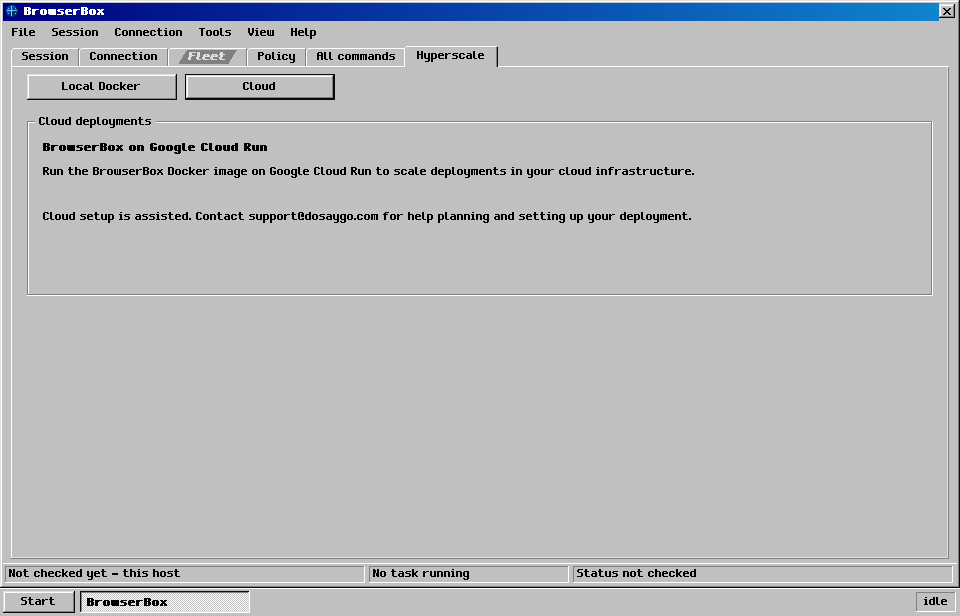
Open Hyperscale (Ctrl/Command+6) in the desktop app (Section 4.3). Its Local view manages named Docker deployments on Linux and macOS. On Windows, use bbx docker from WSL. The Cloud view describes assisted Google Cloud Run deployment; it does not provision cloud resources from the desktop app. Contact support@dosaygo.com for cloud setup assistance.
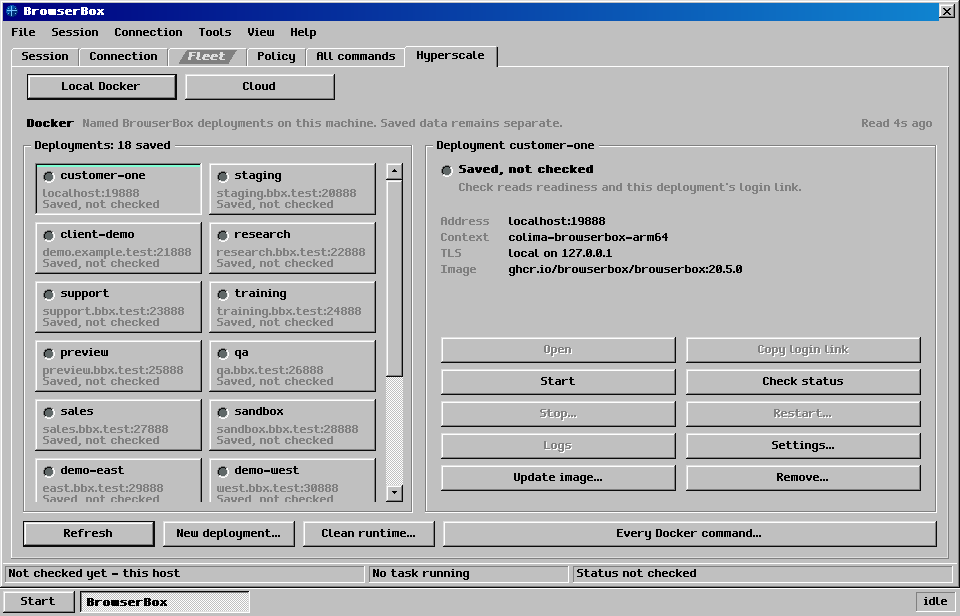
Choose a saved deployment card, or choose New deployment…. Scroll the card list to reach additional deployments. Each name has separate browser data.
Use Settings… to review the name, hostname, port and other setup options, then Save settings. Saving configuration and starting the deployment are separate actions.
Choose Start, then Check status to obtain the deployment’s observed state and login link. Use Open or Copy login link when enabled. Logs shows command output for diagnosis.
Use Stop…, Restart…, or Remove… only after reviewing the named deployment and consequence. Stop retains browser data. Remove retains saved settings, browser data and the licence; purge remains in All commands.
Use Update image… to choose an exact release or image. Browser data is retained. The full Docker command catalogue also provides advanced operations such as
exec,config, andremove --purge.
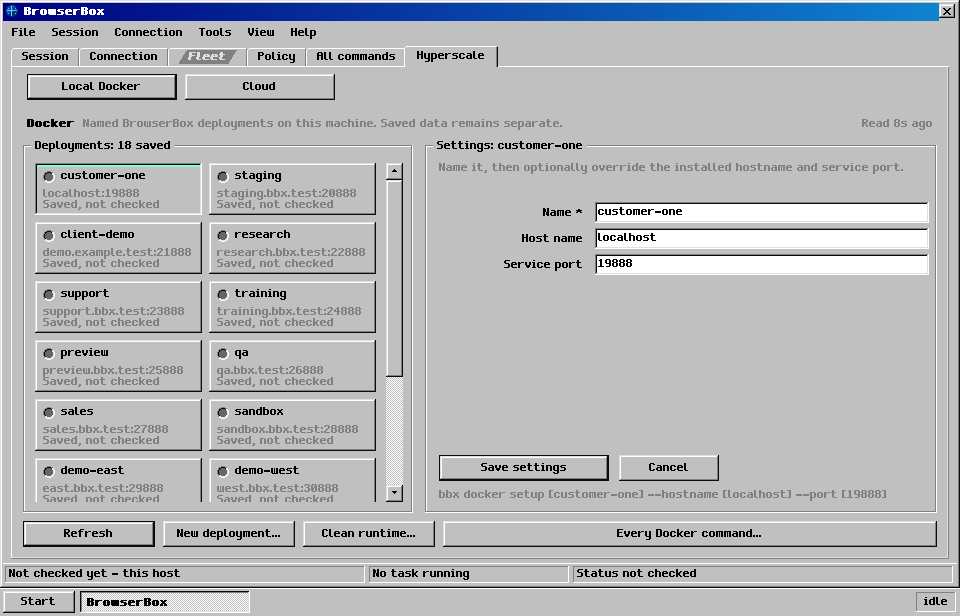
The panel uses the same bbx docker commands as the terminal. Reading saved deployment cards does not establish that their containers are healthy; use Check status for that observation. Docker engine operations are explicit because they may install an engine. Session’s Stop controls the host BrowserBox; Hyperscale’s Stop controls only the selected deployment.
14.9 Docker environment variables #
BBX_DOCKER_CONTEXT |
Named Docker context for a new deployment. |
BBX_DOCKER_IMAGE |
Image reference for a new deployment, instead of ghcr.io/browserbox/browserbox:latest. |
BBX_DOCKER_REPOSITORY |
Registry repository used by --version. |
BBX_DOCKER_HOME |
Parent directory for saved deployments. |
BBX_DOCKER_COMPOSE_VERSION |
Exact Compose plugin version installed on Linux. |
BBX_CLI_BIN_DIR |
Install directory for install.sh --cli-only. |